
How to Run WhatsApp Business Campaigns from Claude: A Step-by-Step MCP Guide
Claude can operate real tools over the Model Context Protocol. Connect DripRaven and it can run your WhatsApp Business campaigns by chat, sending approved templates in bulk to your contacts. This is business messaging on your own number, not personal WhatsApp.
Most people meet MCP as a way to give Claude access to files or a database. The same mechanism can hand Claude the keys to your messaging. Point it at DripRaven, a WhatsApp MCP server. It can import contacts, build segments, send approved templates and schedule follow-ups without ever opening a dashboard. This guide walks the setup end to end. It takes about ten minutes.
What you need
- A Claude plan that supports custom connectors (Pro, Max, Team or Enterprise). Works in Claude on the web and in the desktop app.
- A WhatsApp Business number. You can connect one during setup. This uses the official WhatsApp Business Platform, so you need a Meta Business account.
- A DripRaven account. Free to start. You connect your own number, so Meta bills you directly for messages.
Step 1: Add DripRaven as a connector in Claude
In Claude on the web, open Settings, go to Connectors and choose Add custom connector. Give it the name DripRaven and paste the connector URL:
- Connector URL: https://app.dripraven.com/mcp
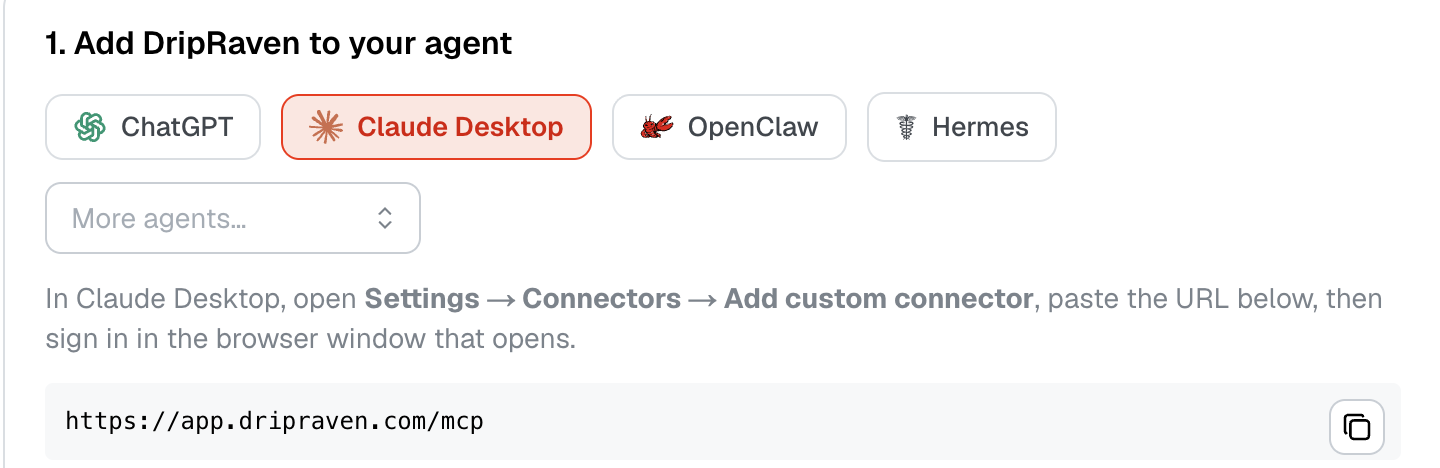
The Claude desktop app has the same option under Settings then Connectors. If you live in the terminal, Claude Code adds it in one line:
claude mcp add --transport http dripraven https://app.dripraven.com/mcp
Step 2: Authorize the connection
Click Connect. A DripRaven sign-in window opens and asks you to approve access. This is a standard OAuth flow, so no keys are copied into a config file. If you want to start cautiously, grant the read-only scope first and re-authorize with sending access when you are ready. Once approved, Claude lists the DripRaven tools and you are connected.
Step 3: Connect your WhatsApp Business number
Open a new chat and ask in plain language:
- Connect my WhatsApp Business number.
DripRaven returns a secure link that runs Meta’s official signup. Complete it once to link your number. It stays your account on your number, so Meta bills you directly for conversations. Ask What is my WhatsApp status? at any time to confirm the connection is live.
Step 4: Import and segment your contacts
Now give Claude an audience to work with:
- Import these contacts (paste a list, or add them one at a time).
- Build a segment of everyone in the UK tagged summer.
DripRaven resolves the segment from tags, countries and custom fields, so you can target by describing the audience rather than clicking through filters.
Step 5: Create and preview a template
WhatsApp requires approved templates for broadcasts. DripRaven handles that for you. Ask Claude to draft one. DripRaven submits it to Meta for approval and maps your personalization to the right contact fields:
- Create a template for a summer sale with the customer first name.
- Preview the broadcast to my summer segment.
The preview shows exactly what each contact will receive before a single message goes out, so you catch a wrong variable or a typo while it is still cheap to fix.
Step 6: Send or schedule, then check the results
When the template is approved and the preview looks right, send it:
- Send it now, or Schedule it for tomorrow at 10am.
- How did the campaign do?
DripRaven sends through the official WhatsApp Business API on your connected number, then reports sent, delivered and read counts back to Claude in plain language. From here you can chain a follow-up, for example a broadcast to everyone who did not reply, all from the same chat.
Why Claude plus DripRaven
Claude is the interface. DripRaven is the operational layer that turns the WhatsApp Business API into something you run by chat: managed contacts, approved templates, safe broadcasts, scheduling and analytics. Because it speaks MCP, the same setup runs from ChatGPT and any other MCP-capable assistant, with no dashboard to learn and no lock-in.
If you are weighing what the official tooling can and cannot do here, our explainer on the Meta Developer Tools MCPcovers where Meta’s own MCP stops and where an operational layer like DripRaven begins.
Frequently asked questions
Do I need a paid Claude plan to connect DripRaven?
You need a Claude plan that supports custom connectors, which is Pro, Max, Team or Enterprise. Custom connectors work in Claude on the web and in the Claude desktop app. On the free plan the connector option is not available.
Do messages come from my own WhatsApp number?
Yes. DripRaven sends through the official WhatsApp Business API on your own connected number, using approved templates. Meta bills you directly for the conversations, the same as any WhatsApp Business Platform usage.
Can Claude message anyone it wants once connected?
No. Broadcasts go only to contacts you import and to segments you define, using templates that Meta has approved and respecting opt-outs. DripRaven also offers a read-only scope, so you can connect for reporting first and grant sending later.
Do I need to write any code?
No. You add one connector URL, sign in once and then describe what you want in plain language. Developers can also add it in Claude Code with a single command if they prefer the terminal.
Does this work with assistants other than Claude?
Yes. DripRaven speaks MCP, so the same setup works from ChatGPT, Cursor, Antigravity and any other MCP-capable assistant. The steps below are for Claude, but the connector URL is the same everywhere.
Related reading
- WhatsApp with Claude
- The WhatsApp MCP server for AI agents
- Meta Developer Tools MCP, explained
- All DripRaven integrations
Run your first WhatsApp campaign from Claude
Connect DripRaven once, link your WhatsApp Business number and send by chat. No dashboard, on the official WhatsApp Business API.